WordPress Google Maps Plugin for Listings: How to Create a Location Directory That Ranks
Choosing the right wordpress google maps plugin for listings can make or break a local business directory. For example, a map that loads slowly or hides key details will drive users away. However, when implemented correctly, an interactive map turns a simple list into an engaging browsing experience. In this article, we’ll walk through the core features, setup tips, and common pitfalls to avoid.
Unlike a generic contact page, a listing-oriented map plugin must tie entries to your site’s custom post types. Therefore, you can display properties, events, stores, or service areas with unique icons and info windows. Moreover, the best solutions work alongside SEO tools, ensuring each listing remains discoverable in search engines. Consequently, business owners and web developers both benefit from a location-aware interface.
Because site owners often worry about performance, modern plugins now offer lazy loading and optimized tiles. Still, the choice of mapping API plays a huge role in speed. That said, the central goal is to give visitors an immediate sense of place. Therefore, the rest of this guide will show you exactly how to accomplish that with WordPress.
Why Your Listings Need a WordPress Google Maps Plugin for Listings
In the listing world, context is everything. Moreover, a map provides that context at a glance. Without a dedicated solution, you might be tempted to embed a simple map that shows one address. However, a robust plugin will show all your listings as pins on the same map. As a result, visitors can compare locations, zoom in on neighborhoods, and filter results with ease. This behavior aligns precisely with what modern users expect from a directory. Consequently, choosing the right wordpress google maps plugin for listings directly impacts user retention.
- Interactive browsing: These solutions let visitors explore a city or region without reloading the page.
- Custom markers and categories: Different icons can distinguish stores, offices, or parking zones.
- Search and filter integration: Filters can keep the map and list synchronized.
- Mobile responsiveness: A touch-friendly interface is essential for on-the-go users.
In addition, a listing map also strengthens your local search presence. Therefore, each marker can link to an individual location page, creating a clear path for crawling. In fact, Google’s own documentation on embedding maps in website content emphasizes how embedded content can improve user interaction. Still, you need a plugin that outputs structured data safely.
Now that we understand the “why,” let’s focus on the “how.”
What to Look For in a WordPress Google Maps Plugin for Listings
Not every map plugin offers the same depth. Therefore, before you install anything, check these criteria.
What Makes a Great WordPress Map Plugin
First, it should support multiple post types. In other words, if you have “Product” and “Store Location” custom types, the plugin should allow you to map both independently. Secondly, it must offer customizable info windows. For example, you may want to show a thumbnail, price, and rating. Thirdly, performance matters. Therefore, ensure the plugin supports lazy loading and does not render hundreds of markers at once. A good approach is clustering, which groups nearby markers until zoomed in.
Another important factor is compatibility with top page builders and themes. More importantly, the plugin should respect your existing WordPress security standards. For that reason, check reviews and recent updates. Additionally, consider whether you need bulk import from CSV. Many listing sites need to upload hundreds of addresses at once. Therefore, choose a plugin that can handle that gracefully.
Using the Google Maps API
To be clear, most plugins require a Google Maps API key. As a result, you’ll need to set up a billing account and enable necessary APIs. Google offers a generous free tier, but usage can grow quickly. Therefore, monitor your usage in the Google Cloud Console. Additionally, make sure the plugin lets you enter the key in a safe, wp-config-based way. This prevents accidental exposure in your database.
Step-by-Step: How to Build a Location Map
Now let’s put theory into practice. For this walkthrough, imagine you are using a popular wordpress google maps plugin for listings (the exact naming may differ, but the steps remain consistent).
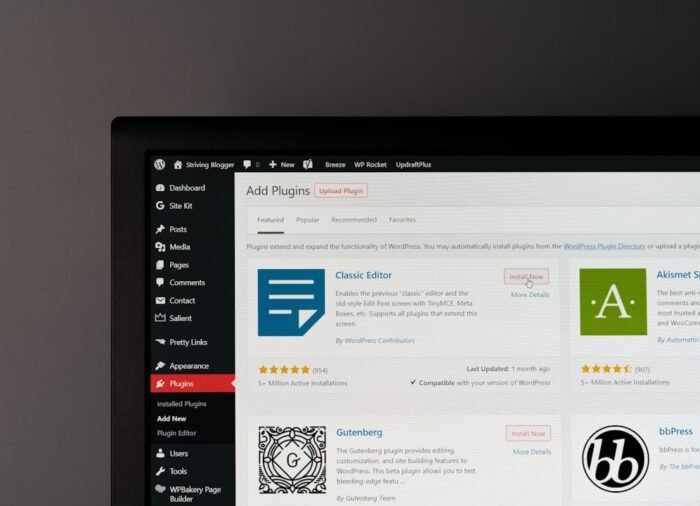
- Install and activate the plugin.
- Enter your Google Maps API key in the plugin settings.
- Create a new map and configure the default marker.
- Attach the map to your post type and define address fields.
- Publish a page and add the map shortcode or block.
Thereafter, test with a few sample listings. In addition, check the map marker on mobile to ensure that it opens a callout with essential information. If you have multiple categories, assign a unique icon per category. Consequently, the visual hierarchy becomes easier to interpret.
How to Improve Local SEO with Map-based Listings
Integrating a wordpress google maps plugin for listings is not only about front-end aesthetics. Indeed, you can leverage the plugin to enhance your site’s structured data. First, make sure each listing has its own URL and a schema.org `LocalBusiness` or `Place` markup. Then, link each map marker to that URL. This explicitly tells search engines that you have a local entity. To do this, you might use an SEO plugin that supports schema. Alternatively, you can add the schema directly with a code snippet. As a result, your pages become eligible for rich results and local packs.
Meanwhile, think about the user intent. When someone searches “real estate office near me,” a map page may not immediately rank. However, if your listing posts contain the right address, phone number, and opening hours, they help establish relevance. Therefore, avoid hidden text and always show the address in regular HTML. That said, many plugins now provide a separate text list next to the map, which is excellent for accessibility.
Common Pitfalls to Avoid with Listing Maps
Choosing a plugin is only half the battle. Next, we’ll outline the most common mistakes that site owners make.
- Using too many markers on one map without clustering, which slows down load times.
- Ignoring license limitations. Some Google Maps APIs are not allowed for certain use cases if you aren’t using them within Google Maps Platform terms.
- Not providing fallback content for users who block the map (e.g., privacy plugins).
- Hiding the map behind a cookie wall without a clear opt-in, which can harm usability.
Moreover, many themes forget to include proper heading hierarchy around the map, causing accessibility issues. Therefore, remember to add an empty text alternative, for example, “Map of our office locations.” Additionally, you can offer a list of addresses below the map so users without JavaScript still understand the placements.
Performance Testing and Monitoring
After deployment, monitor your page speed. In fact, maps can be heavy. Therefore, use recommended tools like PageSpeed Insights to identify slow scripts. If the map appears unstable, switch to lazy loading or load the plugin only on pages that display it. In addition, set up caching rules per page. You might also consider using a lightweight alternative map provider if Google Maps proves too resource-intensive. Nonetheless, if you still prefer Google, ensure your plugin uses the latest API version.
Frequently Asked Questions about Listing Maps
Can I use a WordPress google maps plugin for listings without knowing PHP?
Yes, absolutely. Most modern plugins operate through simple settings and shortcodes. Therefore, you don’t need to write custom code to create beautiful map layouts. However, having some knowledge of HTML classes will help you override styles.
Which mapping service is better for directory websites?
Google Maps is popular because it offers reliable geocoding and rich place data. However, OpenStreetMap is free and may be enough for basic directories. In fact, some WordPress map plugins work with both services. Consequently, your choice may depend on budget and privacy policies.
Do free map plugins handle well large listings?
Not usually. Free plugins often lack built-in clustering and performance optimization. In that case, upgrading to a premium wordpress google maps plugin for listings may be necessary for hundreds of markers. Therefore, if you have a growing directory, plan to invest.
Can I integrate the map with WP_Query and faceted filters?
Yes, if the plugin exposes hooks. Otherwise, use shortcode attributes. Many respected plugins support query parameters, like `category` and `city`. Hence, you can create a search interface that updates the map via AJAX. Again, look for plugins that explicitly advertise that functionality.
Final Thoughts on Listing Maps
To sum up, a wordpress google maps plugin for listings adds significant value to any directory or multi-location website. Indeed, it bridges the gap between visual browsing and local information. Therefore, don’t choose blindly. Instead, assess your data structure, hosting capacity, and SEO goals. Along the way, remember to write accessible text, optimize performance, and test regularly. Finally, with the right plugin and a bit of configuration, you’ll deliver a map that users actually enjoy using.
Frequently Asked Questions
What makes a “perfect” AI-generated image?
It depends on your goal (photorealism, style, consistency). Use a clear brief (subject, style, lighting, framing) and iterate with variations.
How do I write a strong prompt for wordpress google maps plugin for listings?
Use a simple formula: subject + context + style + lighting + composition + detail. Add constraints, then refine in small iterations.
What are negative prompts used for?
They specify what to avoid (blur, watermark, bad anatomy). They improve consistency and reduce common artifacts.
How can I improve the final quality (upscaling)?
Start with a solid composition, then upscale, fix local issues with inpainting, and apply light post-processing when needed.